Capture in Paperweight
Scan, add pages, and review your batch in one place before processing.
Capture workflow Paperweight
Save time and space.
Streamline healthcare document capture, dramatically reduce the disk space your documents consume, and keep workflows consistent across your entire team.
Public preview
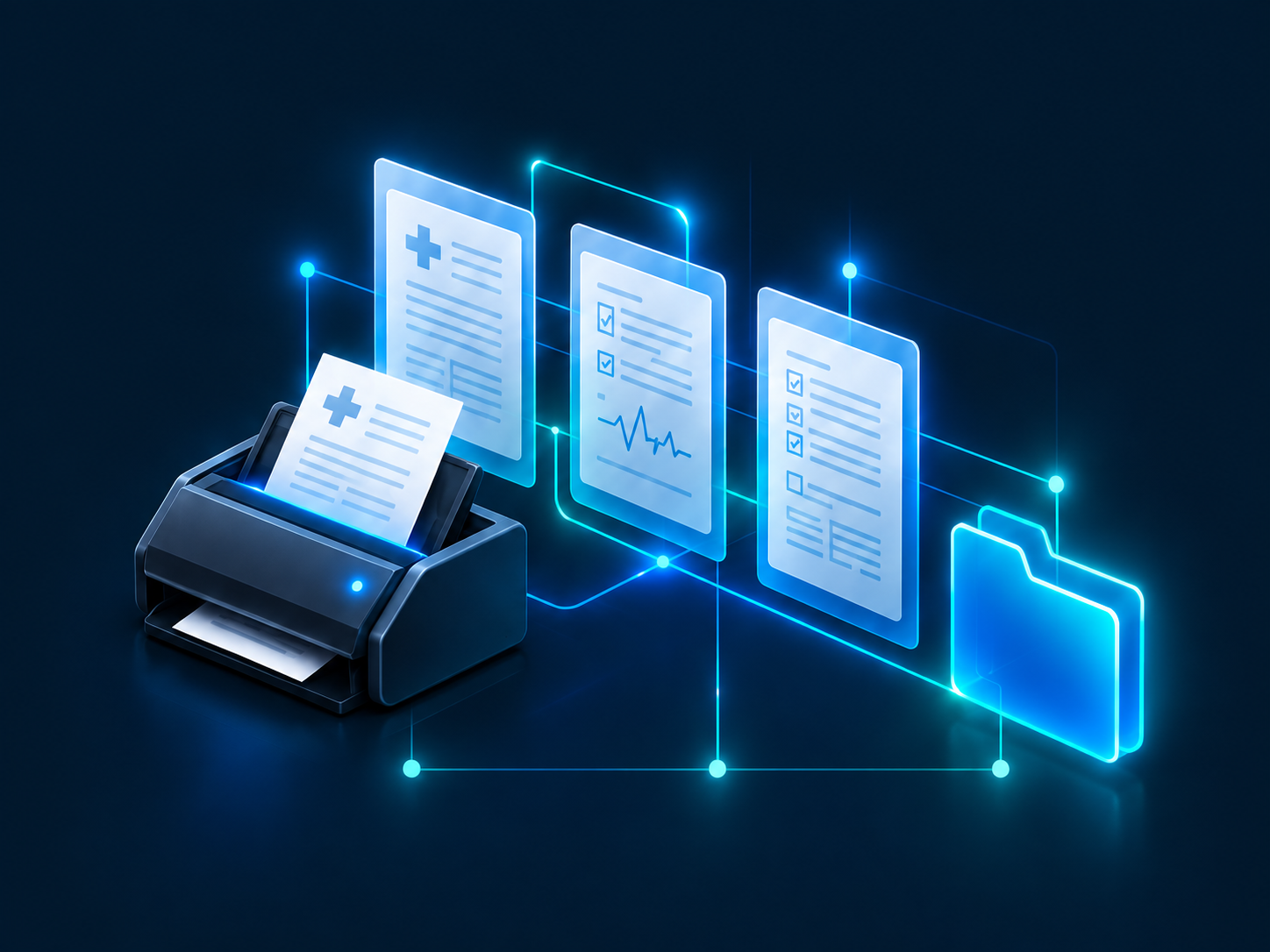
Keep capturing the documents your mission depends on. Paperweight normalizes scanned files so the same document workload can consume far less disk space than direct, non-normalized imports. The savings come from more efficient files, without asking your team to capture fewer documents.
*Up to 90% reduction measured in a preliminary trial in a clinical environment, comparing actual disk space consumed by filed documents normalized with Paperweight automations versus documents captured directly with Canon scanning software. Savings vary by document and settings.
Scan directly in Paperweight, or keep the capture tools you already use. Bring their completed files into a watched folder and let Paperweight take it from there.
Scan, add pages, and review your batch in one place before processing.
Capture workflowSave completed files from your existing scanner or capture product to an output folder. Paperweight picks them up and applies your settings.
Folder intakeGet captured documents ready for the healthcare and business systems your team uses every day.
Define your workflows once, then enable staff to perform scanning and capture tasks consistently on any deployed PC. Distribute settings and workflow assignments with the centralized administration tools you already use.
NinjaOne · Intune · Configuration Manager · Group Policy
Windows 11 x64. Workflows are assigned to each workstation and user. Vendor scanner settings remain device-specific.
Define profiles, sources, and destinations.
Connect each workstation to the right capture and filing workflow.
Apply consistent settings across your teams and locations.
Review local scanning activity, processing outcomes, and document-size reduction. Give operators a clear record of what happened and what needs attention.
Activity and efficiencyPractical guides to scanning, configuration, deployment, and recovery.
User and administrator guideComplete PDF manual